
TOTP tokens are a 6-digit numerical code that is calculated based on the current time and is used in addition to a password to guarantee a more secure login procedure.
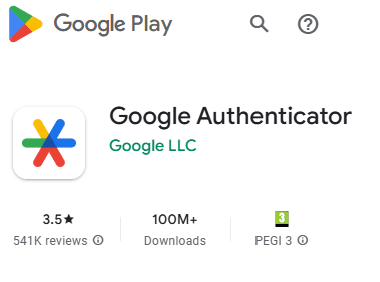
1) Install an Authenticator App
There are several well-known Authenticator apps that you can install on
your smartphone.
You may already have one installed.
Apps that you can use on Android or iOS are for example, Google Authenticator, Ente Auth or 2FAS.
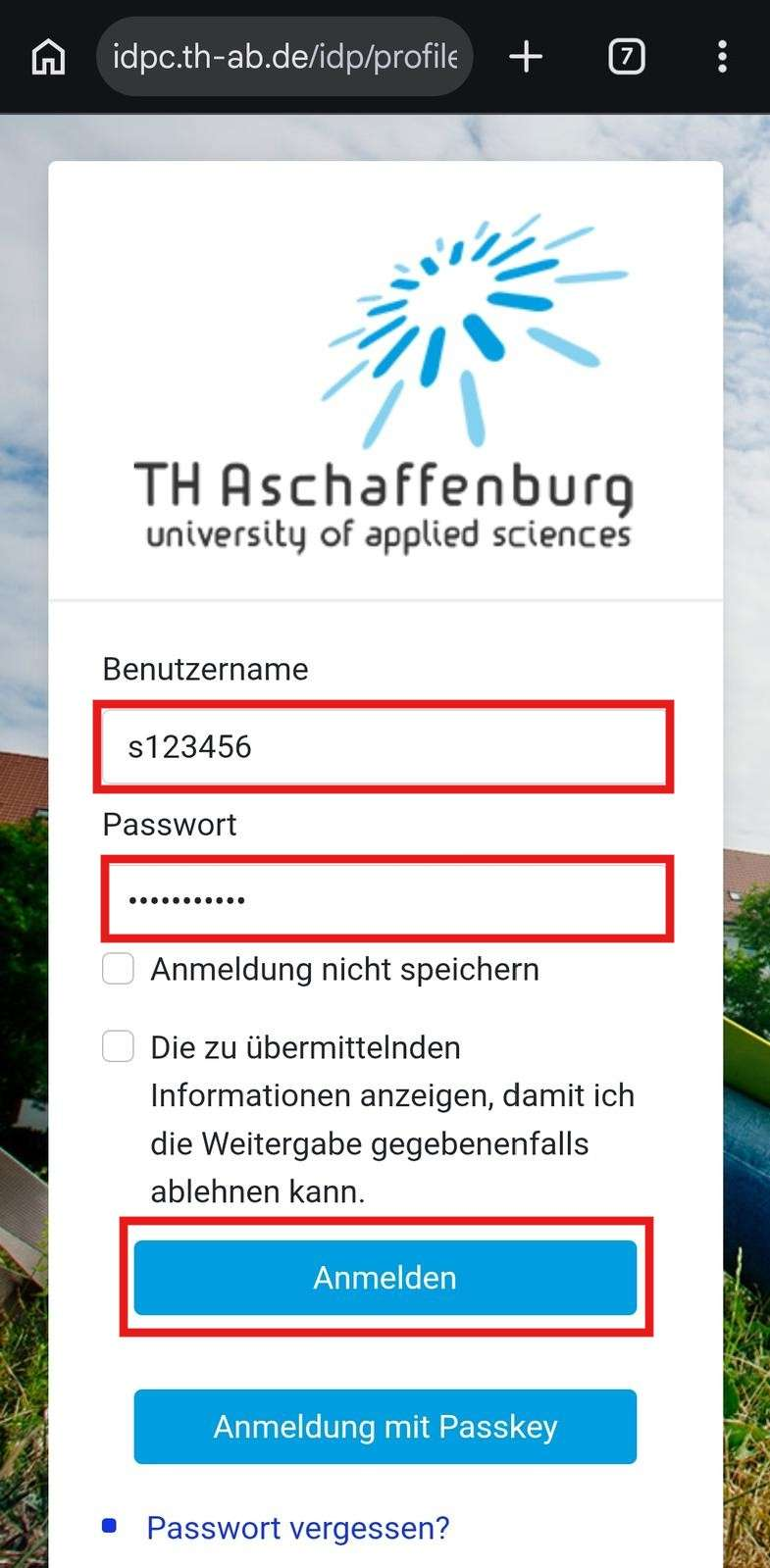
2) Go to → mfa.th-ab.de
3) Log in using your s-number and password
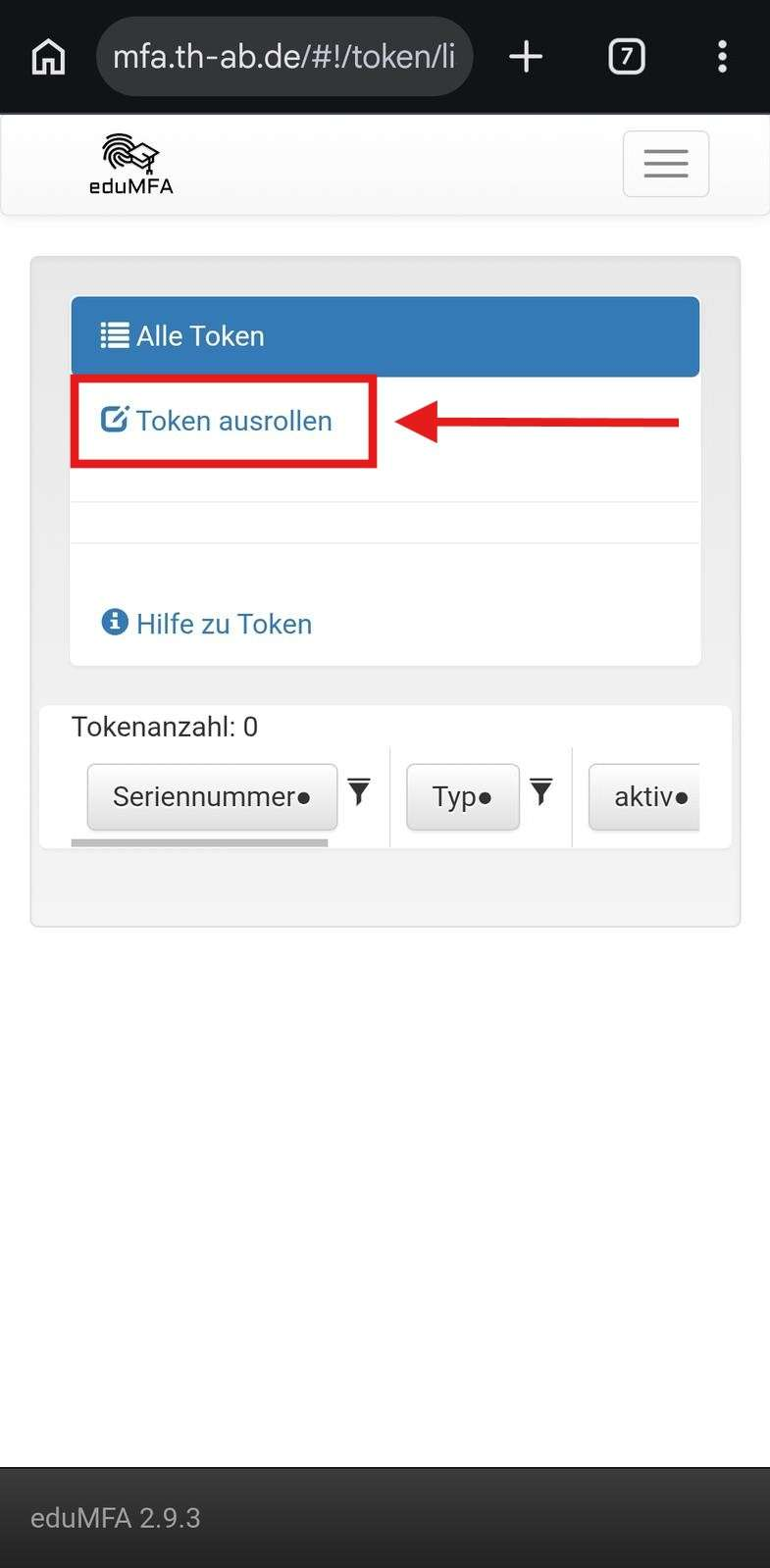
4) Select "Enroll Token" in the menu
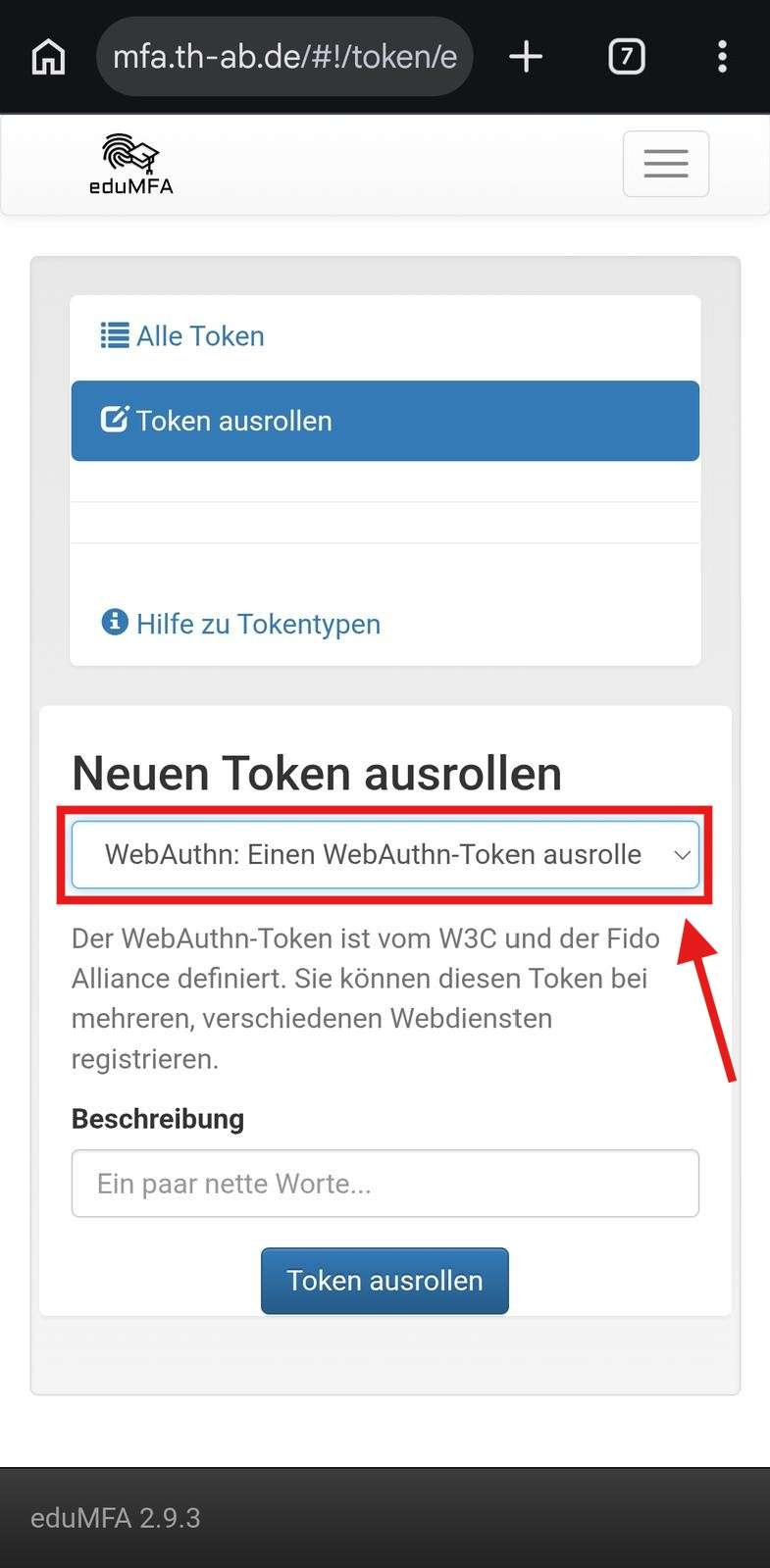
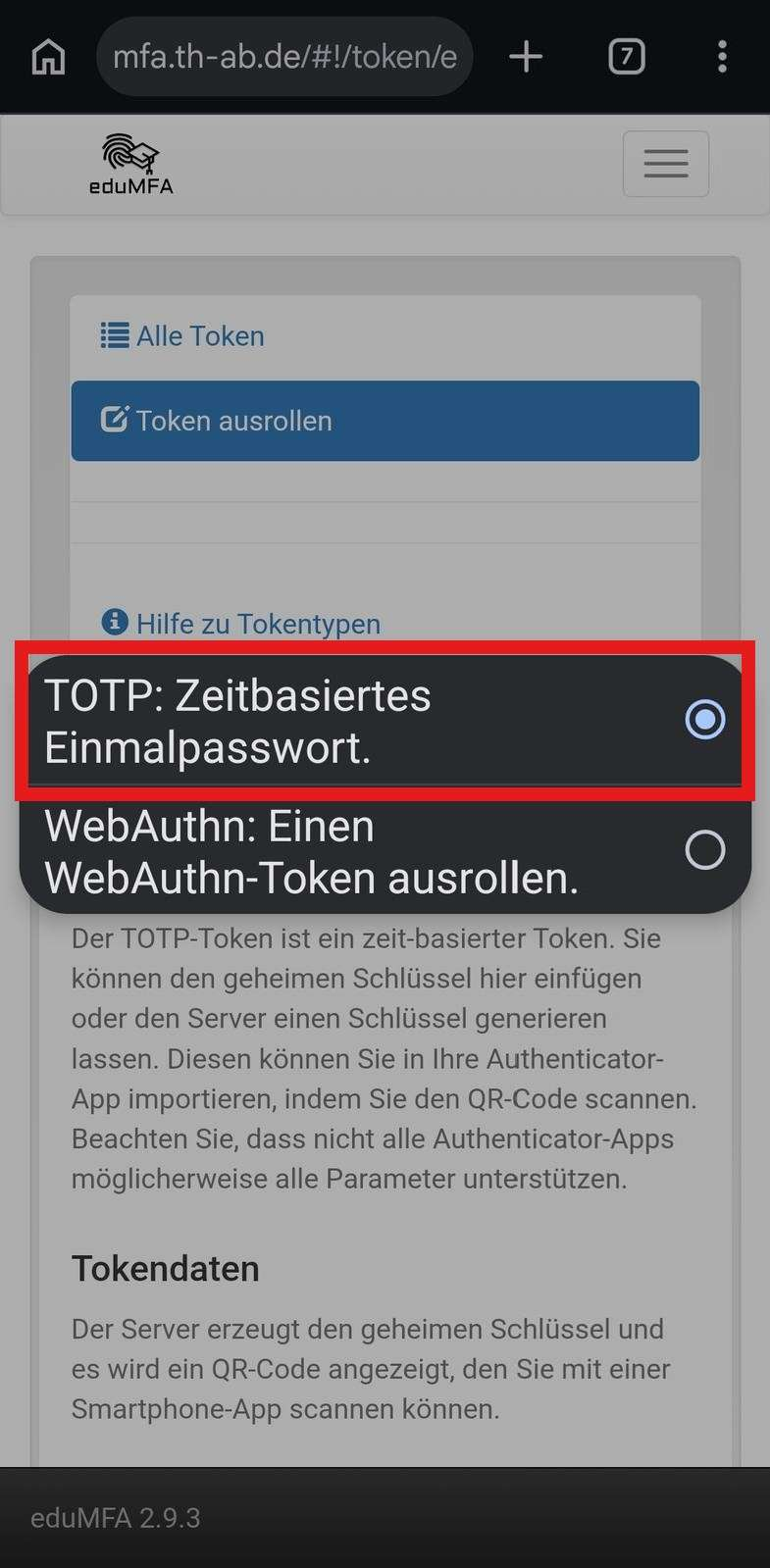
5) Click on the selection field under "Enroll a new token"
6) Select the token type “TOTP: Time based One Time Passwords.” in the drop-down menu
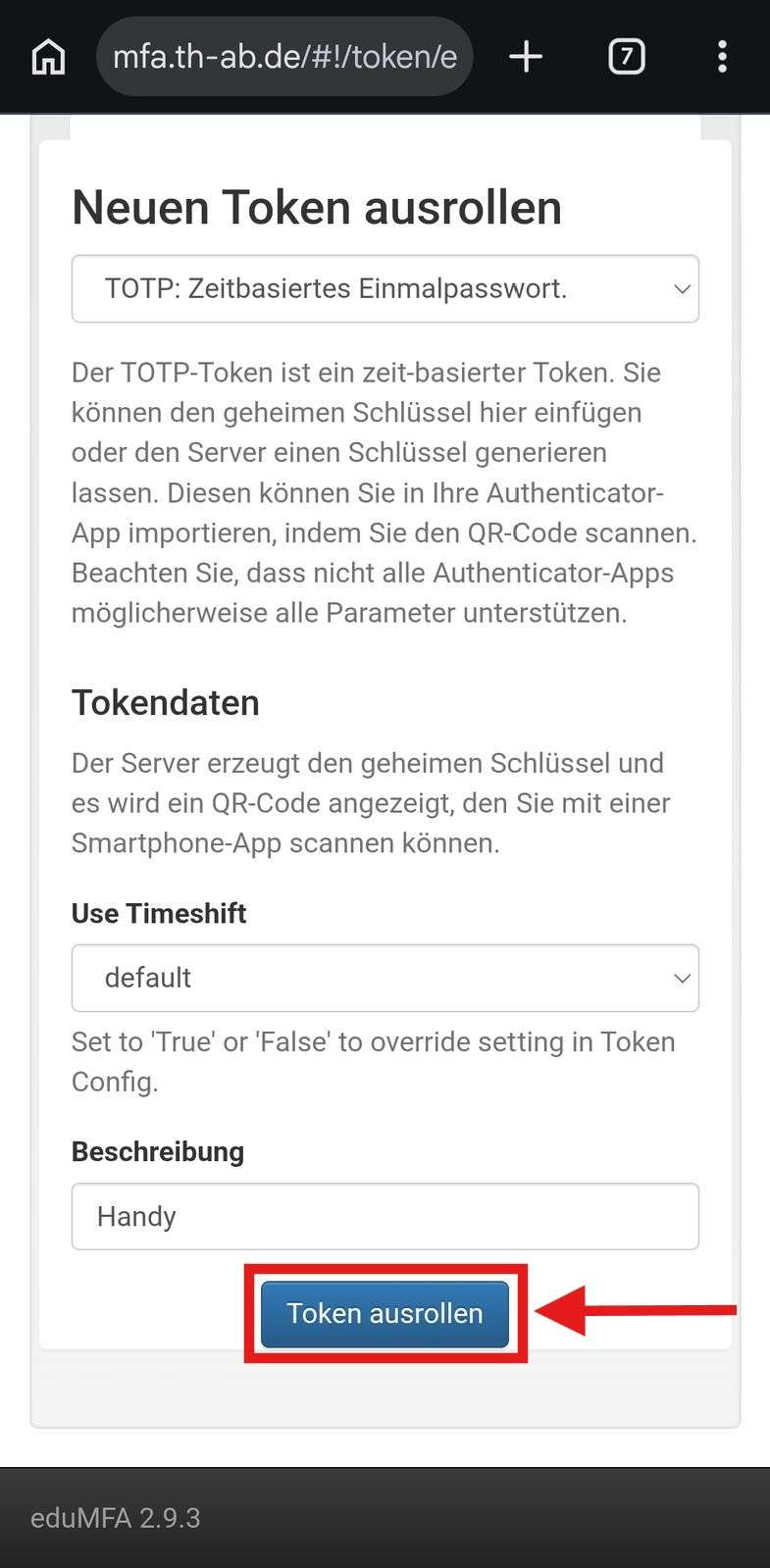
-Do not change anything in the "Use Timeshift" field.
-You can enter any name in the description field (e.g. Phone).
7) Click on the "Enroll Token" Button
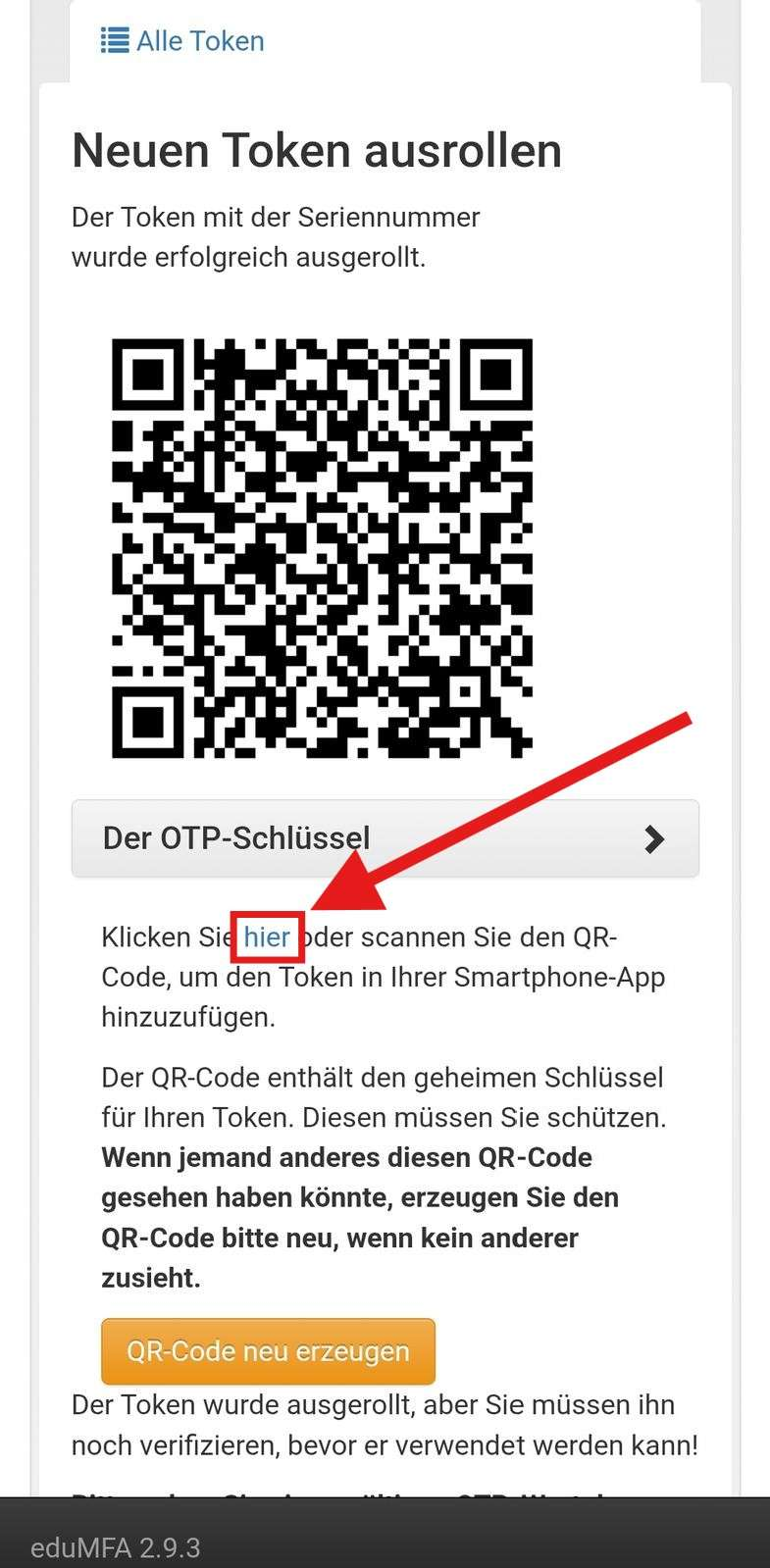
8) Click on "here"
Click on the blue "here" button. You will be redirected directly to your Authenticator app.
Alternatively, if you opened the mfa.th-ab.de website on a device other than your smartphone, you can scan the QR code using your Authenticator app. To do this, open the app and tap the plus (+) symbol
9) Add the token to your Authenticator app
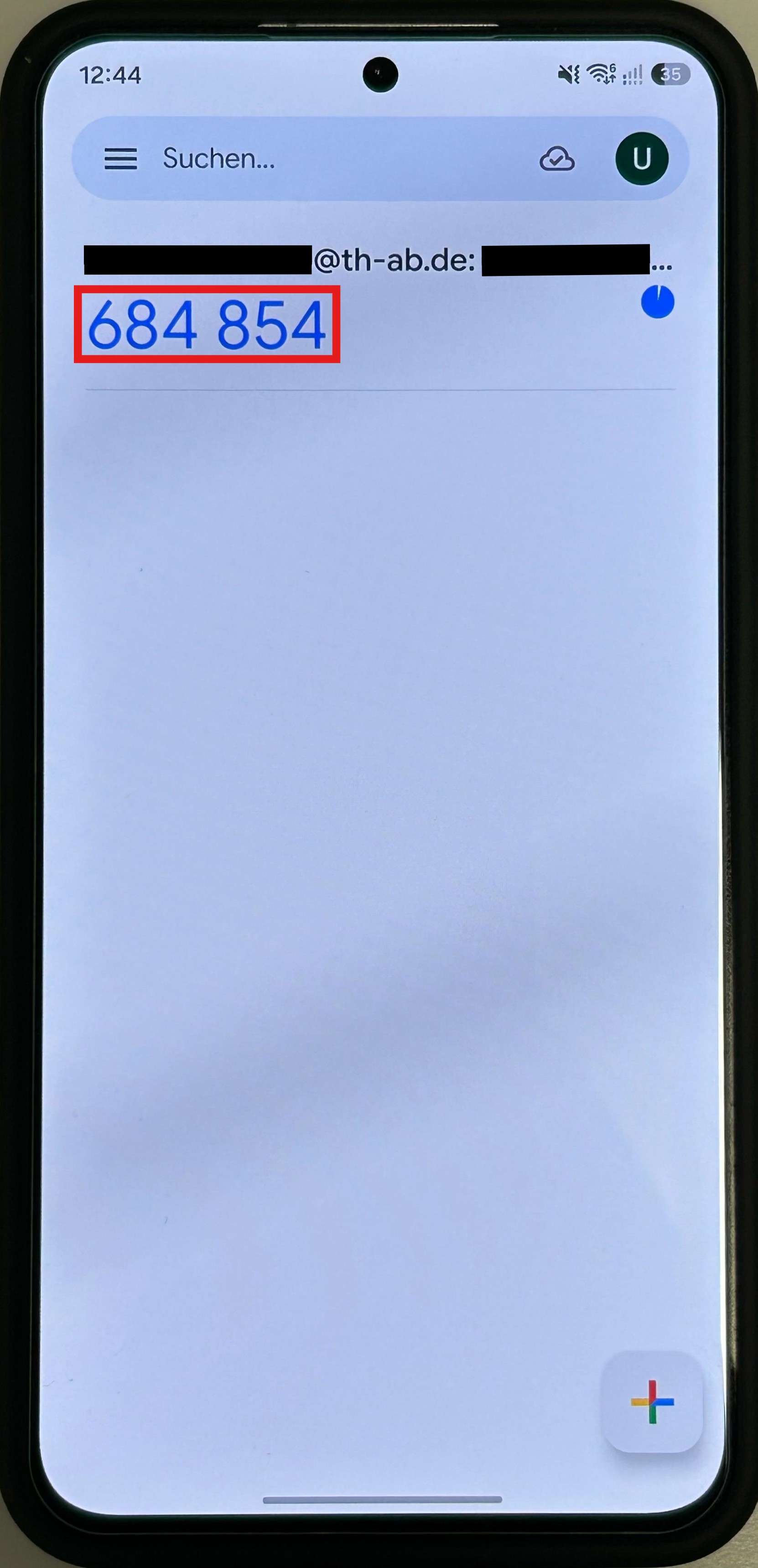
10) Copy the 6-digit code
Copy or remember the current 6-digit code displayed in your Authenticator app and go back to the mfa.th-ab.de website.
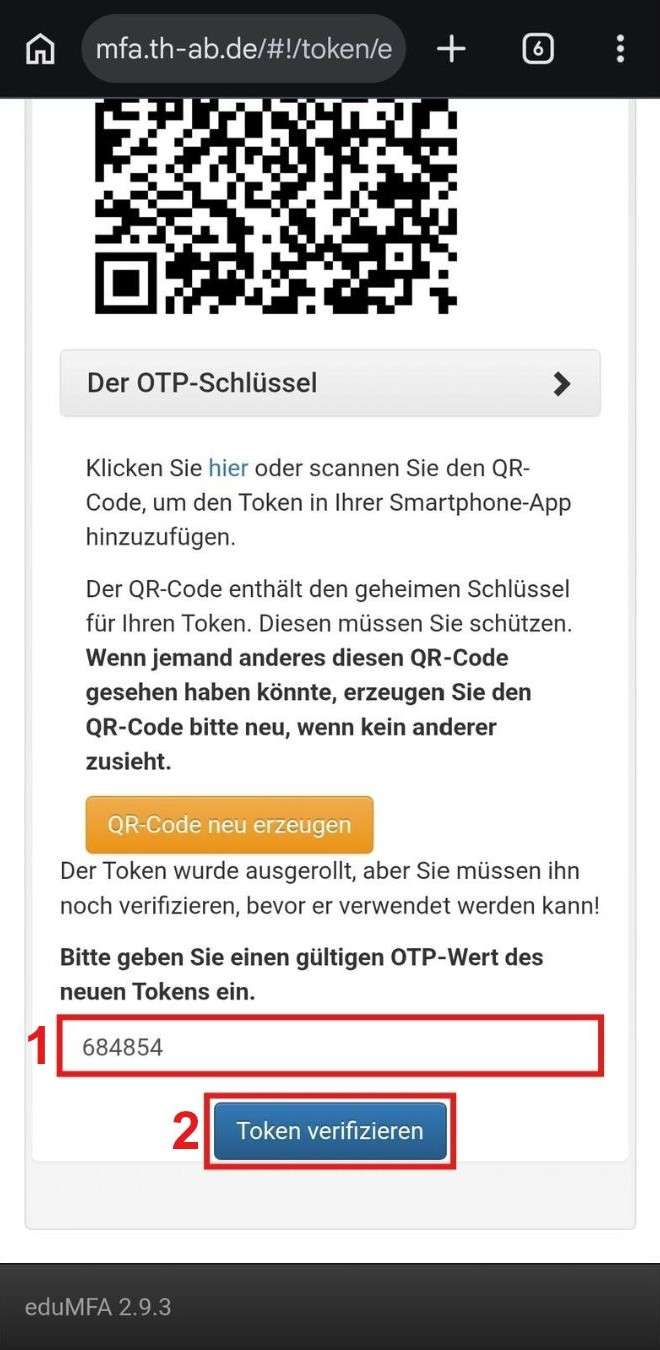
11) Verify your token (IMPORTANT!)
Enter the copied 6-digit code from your Authenticator app into the field at the bottom of the page (1). Then click on "Verify Token" (2).
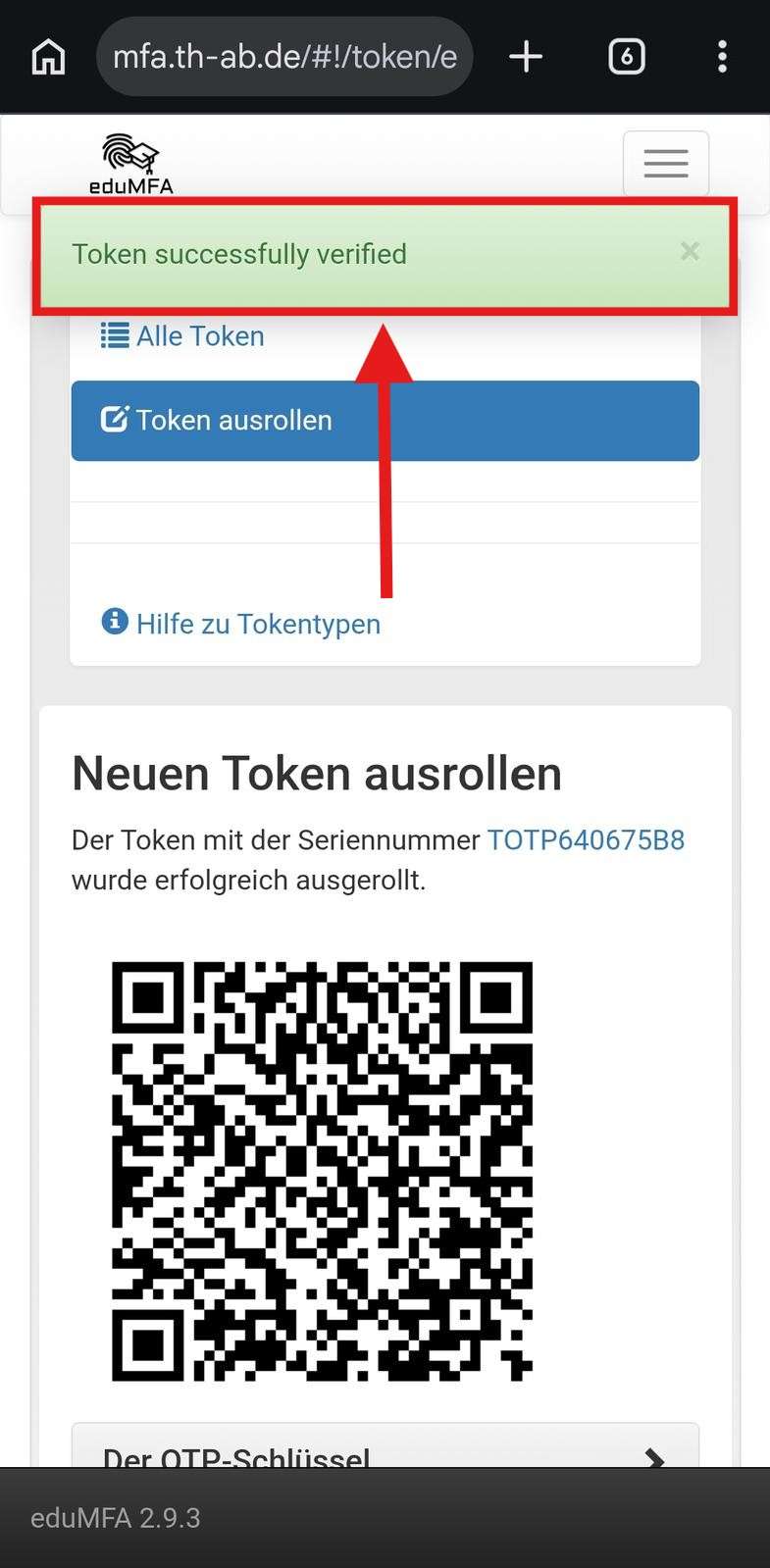
A green message will appear confirming that your token has been successfully verified.
Your TOTP token is now set up and ready to use.