
Step 1: Install eduVPN
Visit the website https://www.eduvpn.org/client-apps select Windows and press "Download for Windows".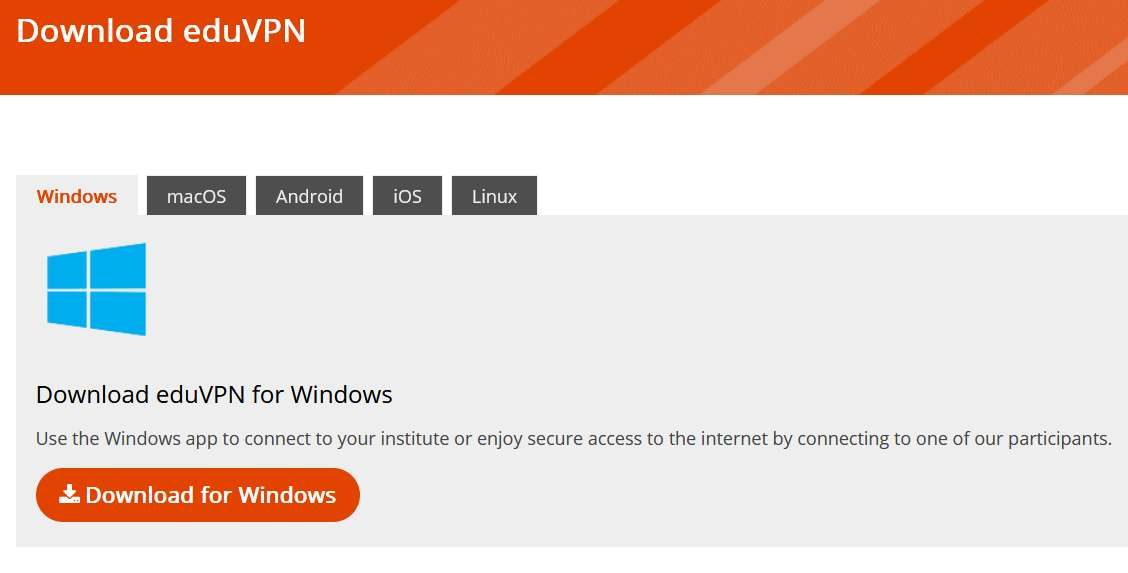
Step 2: Install a Profile
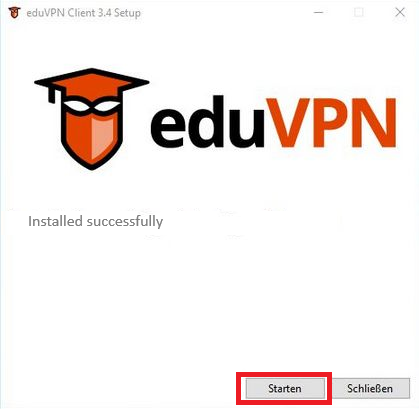
Now navigate to your Download folder and open the file called "eduVPNClient_latest.exe". Press on the install button.
after finishing the installation, press "Start".
Schritt 3: Search for Organisation - Aschaffenburg
Im Suchfeld "Aschaffenburg" eingeben und den Organisations-Zugang anklicken.
Step 4: Log in to your Account
Enter your log in details, or log in using a passkey.
Step 5: Press "authorize"
On this webpage press the marked button.
Step 6: Close the Authorization window
You may now close the authorization website
Step 7: Select a profile
By clicking the Drop-down menu you may select one of the following profiles:
1. Internet & Interne Dienste (eng. "Internet & internal Services")
- Access to the University Network
- Library
2. Interne Dienste/ Labornetz:
- Access to the University Network
- Gitlab or Laboratory
Step 8: Enable the connection
The setup is now complete, and the connection can be established by clicking the button.
After you have finished your work, please disconnect the connection manually by clicking the button.
After you have finished your work, please disconnect the connection manually by clicking the button.