
Step 1: Installing eduVPN
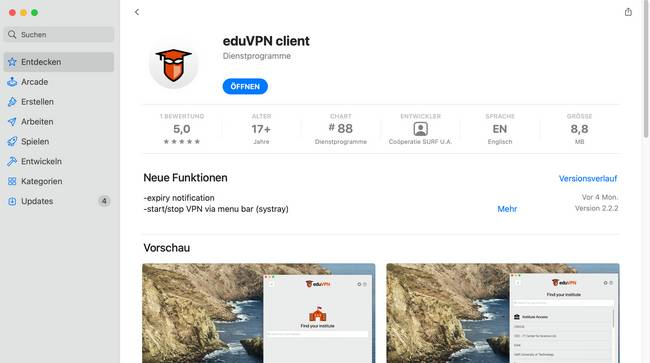
Visit the website https://www.eduvpn.org/client-apps and download eduVPN for "MacOS".
Open the App:
Step 2: Installing a Profile
Now select the "Technische Hochscule Aschaffenburg" as your Institute
Enter the following: eduvpn.th-ab.de
Afterwards click on the suggested Server.
Doing so will open a University log in page, enter your login details, and click log-in.
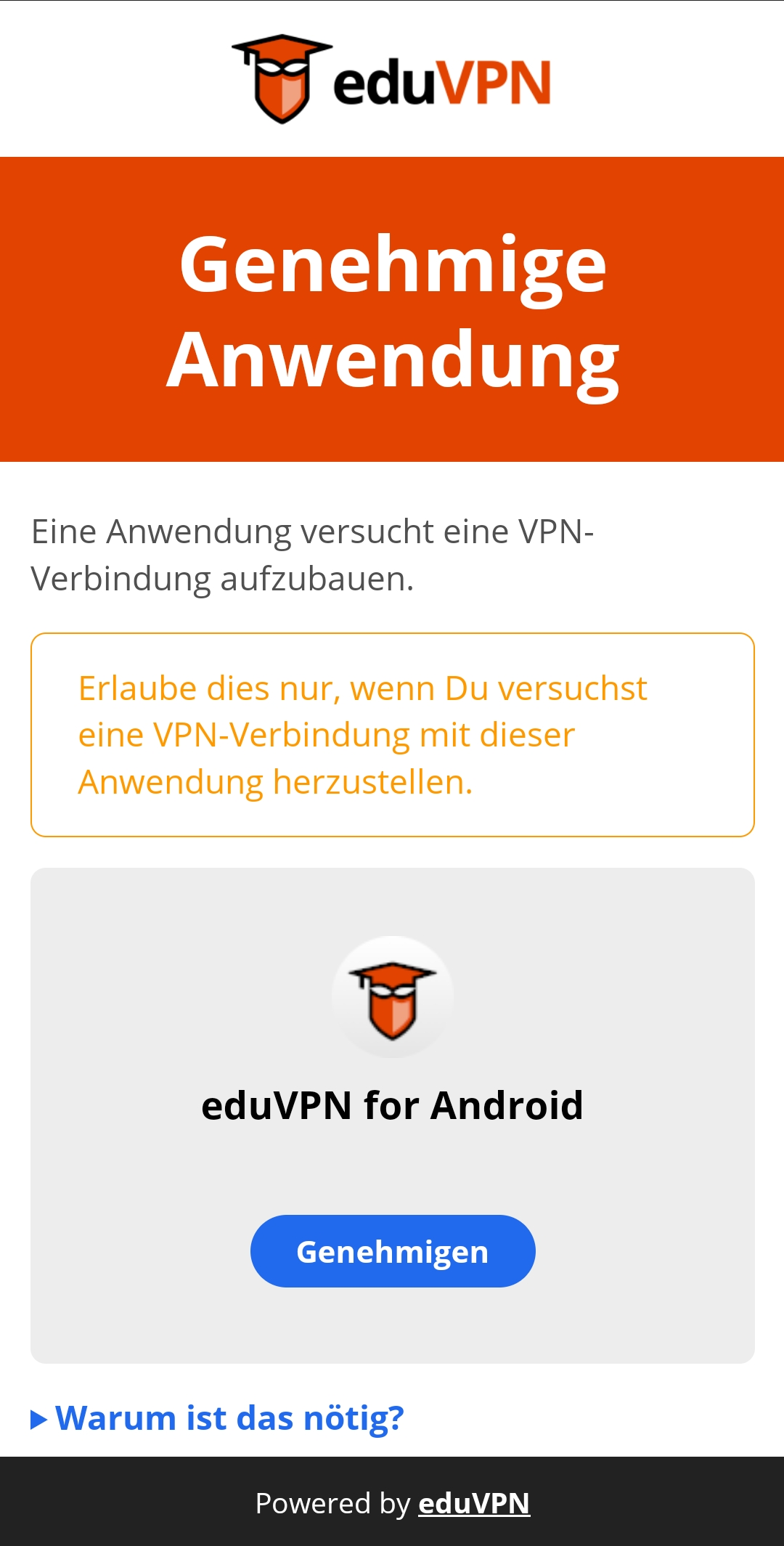
You will now be asked to authenticate the approval. To do this, click on Approve:
Step 3: Connect to the appropriate profile
Then select the appropriate profile again.
You can now activate the EduVPN on the following page. Under "Select profile" you can also change the profile at any time.